Couples Therapy for Microsoft and Google (or: How I Got Them to Share a Spreadsheet)
· 9 min read
Originally published on Medium: read it on Medium
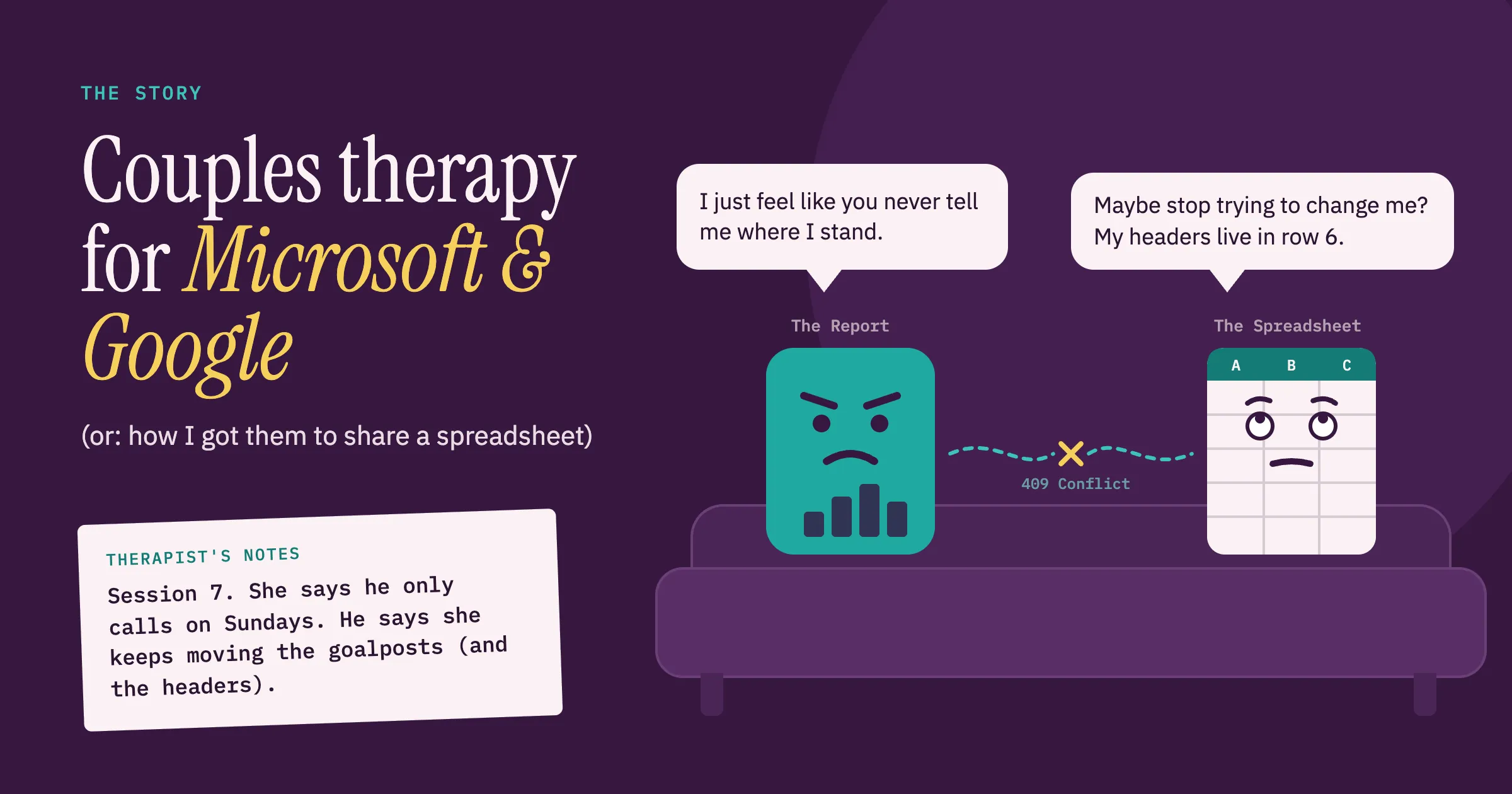
The story (and everything that fought back)
Every Monday, staff in our service open a Google Sheet and work through a list of clients who are due a routine follow-up check. Someone had to build that list by hand each week: pull the data from a report within our CMS, paste it into a new tab, tidy it up and then start sending reminders to all keyworkers within that list.
There was a second reason to automate, and it took me a while to see it. Working in this sector, I’ve noticed that many of my client-facing colleagues are further along in their careers: nationally, 34% of the drug and alcohol treatment workforce is aged 50 or over [1]. Their time goes, rightly, on talking to and caring for clients, and their day-to-day relationship with technology is much smaller than I had imagined (ironic, because I grew up with the opposite; my dad is a true tech genius in every sense of the word, and the reason of my curiosity for this stuff). Every minute spent copying data between systems is a minute taken away from that work. So the goal wasn’t just to save time, rather to make the technology disappear, so the list is simply there when they need it.
I always love when I can help people and make their lives even just a tiny bit easier, so during a meeting when we were talking about these follow-up client checks, I offered a solution that could minimise their work and allow them to concentrate only on “edge” cases.
It took a lot longer than “on paper” suggested. This post is the honest version, dead ends included.
The setup: two ecosystems, one small budget
Like many organisations, we live in two worlds at once:
- Microsoft: our reporting data sits in Power BI, and Power Automate is our tool for automating workflows.
- Google: staff work routinely in the Google Workspace suite, using Google Sheets for their shared working lists and Google Chat to keep in touch.
The data lived on the Microsoft side and the people lived on the Google side. Almost every problem in this project came from making one talk to the other.
My number one rule, no matter the size of the organisation I’m working in, is to first exhaust every free, open-source or already-paid-for option before even thinking of other paid alternatives, even if it means hitting a few more roadblocks and spending longer setting things up.

There are five moving parts:
- Sunday evening – 7pm: a small script inside Google Sheets copies last week’s tab, renames it with Monday’s date and clears out the old rows.
- Sunday evening – 9pm: Power Automate asks Power BI for this week’s list and writes each row into the new tab.
- Sunday evening – 10pm: back to Google Sheets with a script to transfer previous week’s comments and update performance charts
- Monday to Friday: another script checks who has an appointment that day and posts a reminder to the team chat.
- Everyone else: they just open the sheet on Monday and the list is there.
Here’s how it actually went.
Obstacle 1: the connector that leaves much to be desired
Power Automate has a ready-made Google Sheets connector, so the plan was to create a new tab, then add the rows. Easy peasy lemon squeezy… and the only thing that got squeezed was my will to live (I know, quite dramatic).
There was no “create a tab” action. I had imagined the flow around a button that doesn’t exist. The real list of actions is short: get rows, insert a row, update a row, delete a row, and not much more.
Well, fine! Google Sheets has its own scripting tool, Apps Script, which is free and lives right inside the spreadsheet. Creating a tab there takes a few lines. I moved that job across and went back to inserting rows.
Then I hit the real wall:
Unable to use or create id column '__PowerAppsId__'. Create this column manually in your Google Sheet and try again.I created the column manually. Same error. After a lot of poking, I built a throwaway tab with the headers in row 1, and it worked straight away.
That was the hidden rule. The built-in connector assumes your column headers are in the very first row. Our sheet has a performance summary block across the top that staff rely on, with the headers further down. The connector simply couldn’t see them. And moving it to the side just wasn’t what I envisioned.
I had three options:
| Option | Cost | Catch |
|---|---|---|
| Move the headers to row 1 | Free | Breaks the layout staff use every day |
| Write to a hidden helper tab, then pull the data across with a formula | Free | One more moving part to maintain every week |
| Skip the connector and talk to Google’s API directly | A premium Power Automate licence (we already have that, but it’s a cost to consider) | More setup |
I chose the third: a custom connector. That’s a home-made Power Automate action that calls the Google Sheets API (the “back door” programs use to read and write sheets) directly. It meant I could write to exactly the rows I wanted, with no layout compromises.
The lesson: ready-made connectors only go so far. When a tool can’t do what you need, that isn’t the end of the road. With a bit of API know-how, you can design your own solution that fits the way your team already works, instead of bending your work to fit the tool.
Obstacle 2: the rows that slid sideways
Mid-project, we added a new first column. After that, the flow ran on its own schedule for the first time, and the result was strange:
- Row 7 was perfect.
- Rows 8 to 56 had all shifted one column to the right.
- From row 57 onwards, everything was perfect again.
Same flow, same data, and only a block in the middle was wrong.
The culprit was a default setting. When Power Automate loops over a list, it processes up to 20 items at the same time to save time. Google’s “append” command works out where the table ends at the moment you call it. Twenty calls landing at once got twenty slightly different answers about where the table was. As the loop wound down, there was less overlap and things settled back to normal.
The fix was one setting: tell the loop to handle one row at a time.
The lesson: if a block in the middle of your output is corrupted while the start and end are fine, suspect things happening in parallel.
Obstacle 3: the Apps Script that ghosted me after 6 good weeks
The Sunday tab-creation script ran happily for weeks, then started failing:
Sorry, it is not possible to delete all non-frozen rows.The top six rows of the sheet are “frozen” so they stay visible when you scroll. Google Sheets insists that at least one unfrozen row must always exist. My script cleared out old data by deleting rows, and in some weeks it deleted every unfrozen row, which Sheets refused to do.
The fix was a small trick: add one blank row at the bottom first, then delete the old rows. The blank row slides up into place, ready for the new data. There’s always one row left, so the delete is always allowed.
The lesson: “it’s been working for weeks” means the edge case hasn’t arrived yet. You can test as much as you like while building, but some problems only show up once a system is live and real data starts flowing through it. That’s why software testing is a whole profession. So who tests the automations and platform integrations that quietly hold so many small and medium organisations together? Usually, it’s just the person who built them. Unfortunately, we have no QA Engineer - more work for me
The bonus: nagging my colleagues, but make it automated
The last piece was a weekday-morning message in the team’s chat space, listing who has an appointment today, grouped by keyworker. It uses an incoming webhook, a special URL that lets a script (in this case Apps Script) post messages into a chat space.
It works well, but I learned webhooks are deliberately basic:
- No @mentions. Tagging a person needs the full, signed-in Chat API, which a webhook doesn’t have.
- No pinning messages, for the same reason.
- Formatting uses Chat’s own style,
*bold*and_italic_, not HTML tags.
After the sign-in saga above, I wasn’t in a hurry to set up a second round of OAuth. For now bold names do the job, and honestly it’s one less reason for my colleagues to dislike me on Mondays (they already receive 4 automated communications and reports from me).
What it cost
| Item | Cost |
|---|---|
| Google Sheets API, Google Cloud project, Apps Script | Free |
| Power BI | Already licensed |
| Power Automate custom connector | Already covered by our premium licence. Without one, it’s an extra cost for the flow owner (check current pricing) |
Because we already had premium Power Automate licensing, this project cost nothing extra. Well, nothing except my time, several evenings, a small piece of my sanity and a worrying number of conversations with Google’s consent screen… so yeah, as I said, it cost nothing.
If you’re on a standard licence, the custom connector is the one piece that would add a cost. In that case, the free alternatives (restructuring the sheet or adding a helper tab) are genuinely viable and worth weighing first.
Final thoughts: built for people, learned by failing
Underneath all the connectors, tokens and frozen rows, this project was never really about technology. It was about a team whose time is best spent with clients, not copying data between systems. The most useful thing I can build for them is something they barely notice: a list that’s simply there on Monday morning, and a reminder that turns up when it’s needed. If a tool makes people bend around it, it isn’t finished yet.
I’ve been building these kinds of tools for a while now, and I still got caught out more times than I’d like to admit. That’s the honest part I think most tutorials leave out: a lot of the learning happens in the gap between “this should work” and “why doesn’t this work?”. We typically only see the solution, not how someone arrived there. You try something, it fails, you dig into why, and you try again. Every wrong turn in this project taught me something I won’t forget.
That’s why I write these up, dead ends included. If one person hits the __PowerAppsId__ error, or watches half their rows mysteriously slide one column to the right, and finds this post before losing an evening to it, then my ordeals were worth it.
Sources
- NHS England, NHS Benchmarking Network and Office for Health Improvement and Disparities (2025). The National Drug and Alcohol Treatment and Recovery Services National Workforce Census, 1 July 2023 – 30 June 2024. Published 6 August 2025. https://www.hee.nhs.uk/sites/default/files/documents/PRN01899%20-%20Drug%20and%20Alcohol%20Treatment%20and%20Recovery%20Services%20Workforce%20Census.pdf